



Voice Dictation in AI Builder & Assistant
Build Powerful Workflows Just by Speaking Imagine creating an entire workflow without touching your keyboard. No typing. No complicated setup.
Contents
- Key Takeaways
- What Is Voice Dictation in AI Builder & Assistant
- Why Voice-Powered Workflow Creation Matters
- Multi-Language Support
- How to Use Voice Dictation Step by Step
- Practical Examples of Voice Commands
- Tips for Best Results
- Using Voice Dictation with AI Assistant
- Does Voice Dictation Cost Extra
- Common Mistakes to Avoid
- Conclusion
Build Powerful Workflows Just by Speaking
Imagine creating an entire workflow without touching your keyboard. No typing. No complicated setup. Just speak your idea out loud and watch it turn into a fully structured automation.
Voice Dictation in AI Builder & Assistant makes that possible.
This feature transforms how you build workflows, making automation faster, more intuitive, and accessible in multiple languages. Whether you’re creating follow-ups, appointment reminders, or complex branching automations, you can now do it hands-free.
Key Takeaways
- Create workflows by simply speaking your requirements
- Works inside both AI Builder and AI Assistant
- Supports multiple languages for global teams
- Instantly transcribes and generates structured automations
- Reduces workflow setup time from minutes to seconds
What Is Voice Dictation in AI Builder & Assistant
Voice Dictation is a built-in feature that allows users to create workflows or ask automation-related questions using natural speech instead of typing.
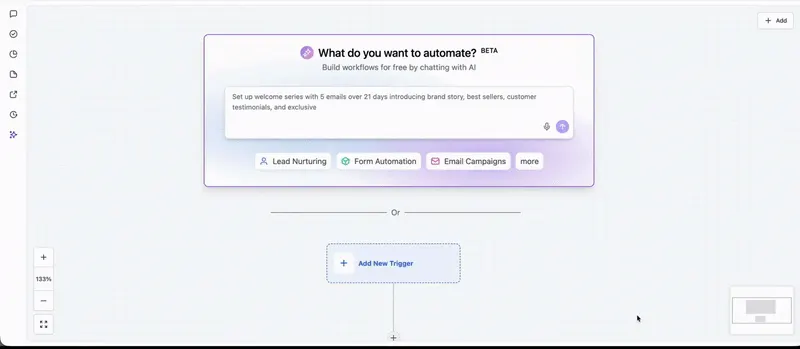
When you click the microphone icon in the AI Builder prompt box, the system listens, transcribes your speech, and automatically generates a workflow based on your instructions.
Think of it as turning your ideas into automations in real time.
For example, you could say:
“Send a welcome email immediately after form submission, wait one day, then send a follow-up SMS if they haven’t replied.”
Within seconds, the AI Builder creates:
- Trigger – Form Submitted
- Action – Send Email
- Wait – 1 Day
- Conditional – If no reply
- Action – Send SMS
No manual dragging. No configuration guesswork.
Why Voice-Powered Workflow Creation Matters
Automation tools are powerful, but they can sometimes feel overwhelming, especially for new users.
Voice dictation changes that.
Faster execution
Instead of navigating menus and selecting triggers manually, you describe your logic and let the AI structure it.
More natural workflow building
You think in sentences, not dropdowns. Speaking your logic mirrors how you naturally plan processes.
Improved accessibility
Voice input makes workflow creation easier for users who prefer speaking over typing.
Multi-language flexibility
Teams across different regions can dictate workflows in their preferred language.
Multi-Language Support
One of the standout advantages of Voice Dictation in AI Builder is its ability to recognize and process multiple supported languages.
You’re not limited to English.
This is particularly valuable for:
- International agencies
- Global support teams
- Multilingual marketing teams
- Businesses operating across different regions
You can speak naturally, and the AI handles transcription and structure accordingly.
How to Use Voice Dictation Step by Step
Getting started is simple.
Step 1
Navigate to Workflows inside your platform.
Step 2
Open the Workflow Builder.
Step 3
Locate the AI Builder prompt box.
Step 4
Click the microphone icon.
Step 5
Speak your workflow idea clearly and naturally.
Step 6
Wait a few seconds while the system transcribes and generates your workflow.
Step 7
Review the generated automation.
Step 8
Refine, adjust, or publish your workflow.
That’s it.
Practical Examples of Voice Commands
Here are real-world examples of how you can use voice dictation effectively.
Lead Follow-Up Automation
“After someone books an appointment, send a confirmation email, then send a reminder SMS one hour before the appointment.”
Sales Pipeline Movement
“When an opportunity moves to Won, send a thank-you email and notify the onboarding team.”
Conditional Nurture Sequence
“If a contact clicks the email link but doesn’t reply within two days, send a follow-up SMS.”
Internal Notification
“When a new contact is tagged VIP, notify the sales manager immediately.”
The clearer your instructions, the more accurate the workflow generation.
Tips for Best Results
To maximize accuracy, follow these simple tips.
- Speak clearly and at a natural pace
- Mention triggers first, then actions
- Be specific with time delays
- Include conditions if needed
- Keep instructions structured
For example, say:
“Trigger when a form is submitted. Send an email immediately. Wait two days. If no response, send an SMS.”
Structured thinking produces cleaner workflows.
Using Voice Dictation with AI Assistant
Voice dictation isn’t limited to workflow generation.
Inside AI Assistant, you can:
- Ask how to build a specific automation
- Request optimization suggestions
- Generate campaign ideas
- Troubleshoot workflow logic
For example:
“How can I improve my appointment reminder workflow?”
The assistant will respond with actionable suggestions — all without typing.
Does Voice Dictation Cost Extra
At the time of writing, Voice Dictation is part of the AI Builder and AI Assistant functionality. There is no separate line-item pricing specifically for the microphone feature itself.
If your account uses AI tools that are usage-based, pricing would follow the standard AI usage structure already in place for your plan.
There is no additional per-dictation fee.
Always check your platform’s AI usage pricing if your plan includes consumption-based billing.
Common Mistakes to Avoid
Even with powerful AI, clarity matters.
Avoid:
- Vague instructions like “Do follow-ups”
- Speaking too quickly
- Giving multiple unrelated workflows in one sentence
- Skipping conditions when they matter
Clear instructions equal clean automations.
Conclusion
Voice Dictation in AI Builder & Assistant changes how we think about automation.
Instead of navigating technical menus, you simply describe your process. It’s faster. More intuitive. More accessible.
For busy marketers, agencies, and business owners, this means:
- Less time building
- More time optimizing
- Faster execution
- Smoother automation scaling
If you’ve been spending too much time clicking through workflow settings, it may be time to start speaking your automations into existence.
Quick answers
Frequently asked questions
Is voice dictation available in all languages?
Voice recognition works across supported languages within the platform. If your language is supported, you can dictate workflows naturally.
Can I edit the workflow after it’s generated?
Yes. After the AI builds your workflow, you can manually adjust triggers, actions, and timing before publishing.
Does it remember previous conversations?
Workflow AI does not automatically reference past conversations unless context is included in your prompt.
Is this feature available on mobile?
Availability depends on platform updates. Always check your current version for microphone support.
Can I create complex workflows using voice?
Yes. You can include delays, conditions, branching logic, and notifications — just describe them clearly.
Where this leaves you
Skip the build. Import a working GoHighLevel account instead.
Everything above is buildable by hand, and most people never finish. A snapshot is the same setup already made: funnels, pipelines, calendars, the prebuilt website and the automations, written for one industry and wired together before it reaches you.
- Delivered within 24 hours by email
- Install on unlimited sub-accounts you manage
- 20 hours of setup help across 15 days
Keep reading
All articles
Pre-Built A2P Campaign Widget-First Registration flow
If you’ve ever struggled with A2P 10DLC registration, you know how confusing and rejection-prone the process can be. One small
March 13, 20265 min read
Voice Dictation in AI Builder & Assistant
Build Powerful Workflows Just by Speaking Imagine building a complete automation without typing a single word. No clicking through triggers.
February 27, 20264 min read
Conversation AI Auto Follow-Up
The Smart Way to Re-Engage Leads Without Manual Work Leads don’t always ghost you on purpose. Sometimes they get busy.
February 20, 20264 min read