



Voice Dictation in AI Builder & Assistant
Build Powerful Workflows Just by Speaking Imagine building a complete automation without typing a single word. No clicking through triggers.
Contents
Build Powerful Workflows Just by Speaking
Imagine building a complete automation without typing a single word.
No clicking through triggers.
No searching for actions.
No manual configuration.
Just speak your idea out loud — and watch your workflow appear.
That’s exactly what Voice Dictation in AI Builder and AI Assistant allows you to do. This new feature transforms the way workflows are created by turning natural speech into structured automation in seconds.
Whether you are an agency owner, marketer, or automation specialist, voice-to-workflow creation removes friction between idea and execution.
Key Takeaways
- Create workflows simply by speaking your requirements
- AI Builder transcribes and generates automation instantly
- Multi-language support allows dictation in your preferred language
- Works inside both AI Builder and AI Assistant
- Reduces workflow creation time dramatically
- No additional cost required to use the feature
Let’s break down exactly how it works and how to use it effectively.
What Is Voice Dictation in AI Builder
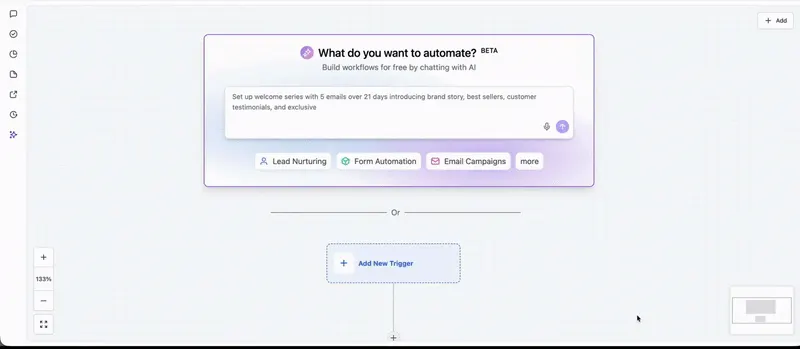
Voice Dictation allows users to create workflows inside the Workflow Builder using spoken instructions instead of typing.
When you click the microphone icon inside the AI Builder prompt box, the system listens to your voice, transcribes your speech, and generates a structured workflow based on your instructions.
This includes:
- Selecting the correct trigger
- Adding actions such as SMS, email, task creation, or notifications
- Adding wait steps or delays
- Structuring logic in the correct sequence
Instead of building step by step manually, you describe what you want — and the system builds it for you.
Why This Feature Matters
Workflow automation is powerful, but building workflows traditionally takes time. You must:
- Choose a trigger
- Add each action individually
- Configure timing
- Connect branches
- Double-check logic
For experienced users, this may take 5 to 15 minutes per workflow. For beginners, much longer.
Voice dictation compresses that time significantly.
You go from idea to implementation in seconds.
It also lowers the technical barrier for team members who may not be comfortable navigating complex automation menus.
Multi-Language Voice Support
One of the most practical advantages of this feature is multi-language support.
You are not restricted to English.
You can dictate your workflow in your preferred language, and AI Builder will transcribe and interpret it accordingly.
This makes automation more accessible for:
- Global agencies
- International teams
- Non-English-speaking users
- Multilingual marketing campaigns
Voice recognition works across supported languages, helping you operate naturally without language limitations.
How to Use Voice Dictation in AI Builder
Using the feature is simple and intuitive.
Step 1 Open Workflow Builder
Navigate to Automations and open Workflows.
Create a new workflow or open an existing one.
Inside the Workflow Builder, you will see the AI Builder prompt box.
Step 2 Click the microphone icon.
Inside the AI prompt box, click the microphone icon.
If prompted, allow browser access to your microphone.
Step 3: Speak Your Workflow Clearly
Describe your automation naturally.
You do not need technical terminology. Speak as if explaining to a teammate.
For example:
“When a new lead fills out my website form, send them a welcome SMS immediately, wait two days, then send a follow-up email and notify the assigned user.”
Keep your instructions structured and clear.
Step 4: Let AI Generate the Workflow
Once you finish speaking:
- Your speech is transcribed
- AI interprets the request
- The workflow appears on the canvas
Triggers, delays, and actions are automatically placed in logical order.
Step 5 Review and Refine
Before publishing:
- Confirm triggers are correct
- Adjust message copy if needed
- Verify timing
- Add personalization fields
Once everything looks good, publish your workflow.
Using Voice Dictation in AI Assistant
Voice dictation is not limited to workflow creation.
It also works inside AI Assistant.
You can speak to:
- Ask questions about automation setup
- Request workflow suggestions
- Generate message copy
- Clarify logic or conditions
Instead of typing long queries, you can speak naturally and receive instant AI assistance.
This creates a smoother and more conversational workflow-building experience.
Is There Additional Pricing for Voice Dictation
Voice Dictation in AI Builder and Assistant does not require separate pricing.
It operates within the existing AI Builder functionality.
There are no additional per-use voice charges for basic usage.
If your account uses AI-powered features tied to usage limits, standard AI usage rules may apply, but voice dictation itself does not introduce separate fees.
Always review your account’s AI usage plan if you operate at scale.
Best Practices for Accurate Workflow Generation
To get the most accurate results:
- Speak clearly and at a steady pace
- Specify triggers explicitly
- Mention exact timing when needed
- Clarify communication channel such as SMS or email
- Structure instructions in logical order
Instead of saying:
“Send reminders.”
Say:
“Send SMS reminder 24 hours before the appointment.”
Specific instructions produce more accurate automation.
Conclusion
Voice Dictation in AI Builder and AI Assistant removes one of the biggest barriers to automation — complexity.
Instead of navigating menus and manually assembling workflows, you simply describe what you want.
Speak your idea.
Watch it build.
Refine and launch.
For agencies and automation-heavy businesses, this feature saves time, increases efficiency, and makes workflow creation more intuitive than ever.
If you have not tried voice-to-workflow creation yet, open your Workflow Builder, click the microphone icon, and test a simple automation.
Quick answers
Frequently asked questions
Does voice dictation work on all browsers?
Most modern browsers that support microphone permissions will work. Ensure your browser allows microphone access.
Can I edit the workflow after it is generated?
Yes. After AI generates the workflow, you can modify triggers, actions, and messaging before publishing.
Does voice dictation support multiple languages?
Yes. Multi-language voice recognition is supported, allowing you to dictate in your preferred language.
Is voice dictation available in AI Assistant?
Yes. The feature works in both AI Builder and AI Assistant.
Do I need technical knowledge to use it?
No. You can speak naturally. Technical terms are not required.
Where this leaves you
Skip the build. Import a working GoHighLevel account instead.
Everything above is buildable by hand, and most people never finish. A snapshot is the same setup already made: funnels, pipelines, calendars, the prebuilt website and the automations, written for one industry and wired together before it reaches you.
- Delivered within 24 hours by email
- Install on unlimited sub-accounts you manage
- 20 hours of setup help across 15 days
Keep reading
All articles
Pre-Built A2P Campaign Widget-First Registration flow
If you’ve ever struggled with A2P 10DLC registration, you know how confusing and rejection-prone the process can be. One small
March 13, 20265 min read
Conversation AI Auto Follow-Up
The Smart Way to Re-Engage Leads Without Manual Work Leads don’t always ghost you on purpose. Sometimes they get busy.
February 20, 20264 min read
Manus Triggers and Actions in Workflows
AI automation is evolving fast. If you’ve ever wished you could fully control AI tasks inside your CRM without relying
February 18, 20265 min read