



How to upgrade to Gohighlevel SAAS Plan
Are you ready to scale your agency and give your clients a white-labeled software experience? ✨ Upgrading to the GoHighLevel

Contents
Are you ready to scale your agency and give your clients a white-labeled software experience? ✨ Upgrading to the GoHighLevel SaaS Plan unlocks a world of automation, branding, and profit potential. But if you’re unsure where to start, you’re not alone.
In this guide, we’ll walk you through the entire process of upgrading to the GoHighLevel SaaS Plan, from toggling the right settings to adjusting features and billing.
Here’s What You’ll Discover
✅ Step-by-step instructions to activate SaaS Mode
🧩 How to enable upgrade and cancel options for your clients
💳 Detailed breakdown of billing and Stripe integration
⚙️ How to adjust plans, pricing, and features based on tiers
📉 What to do if a client cancels or wants to downgrade
What is the GoHighLevel SaaS Plan
The SaaS plan allows digital marketing agencies to resell GoHighLevel under their own brand. With this, you can build recurring income streams by offering software access with tailored features, custom pricing, and built-in automation.
Some core perks:
White-label branding (your logo, custom domain, etc.)
Sell pre-built marketing systems to clients
Automate billing and onboarding
Set different plans with unique features
Enable self-service upgrades for clients
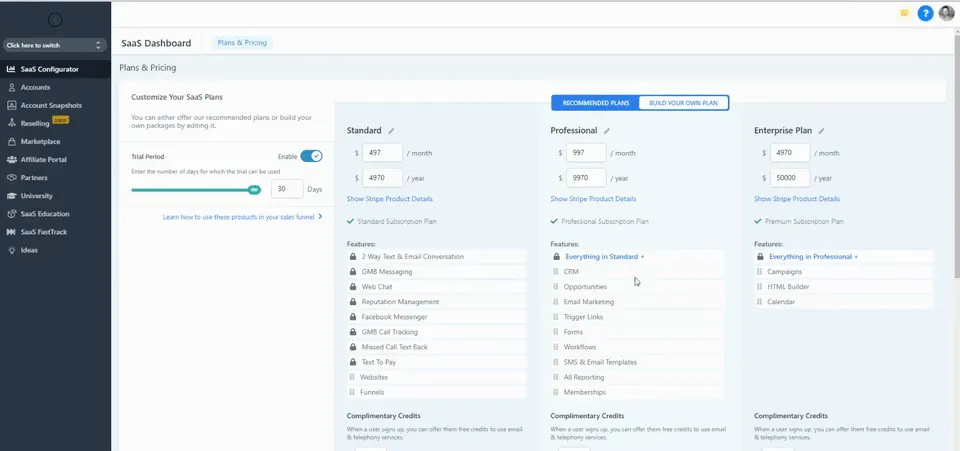
How to Upgrade to the GoHighLevel SaaS Plan
Step 1 Log in and Access the SaaS Configurator
Head over to your GoHighLevel Agency dashboard. On the left menu, click SaaS Configurator. This is where you’ll build and manage your SaaS plans.
Pro Tip: Make sure your Stripe account is already connected in Settings > Payments.
Step 2 Turn on Upgrade and Cancel Settings
Go to the Advanced Settings tab in the SaaS Configurator.
Here, toggle on:
✅ Allow sub-account admins to upgrade
✅ Allow sub-account admins to cancel
✅ Auto-assign features when a new plan is chosen
This lets your clients change their plans on their own—no manual steps required!
⚠️ Note: These settings apply only to new accounts. Existing accounts need to be updated individually.
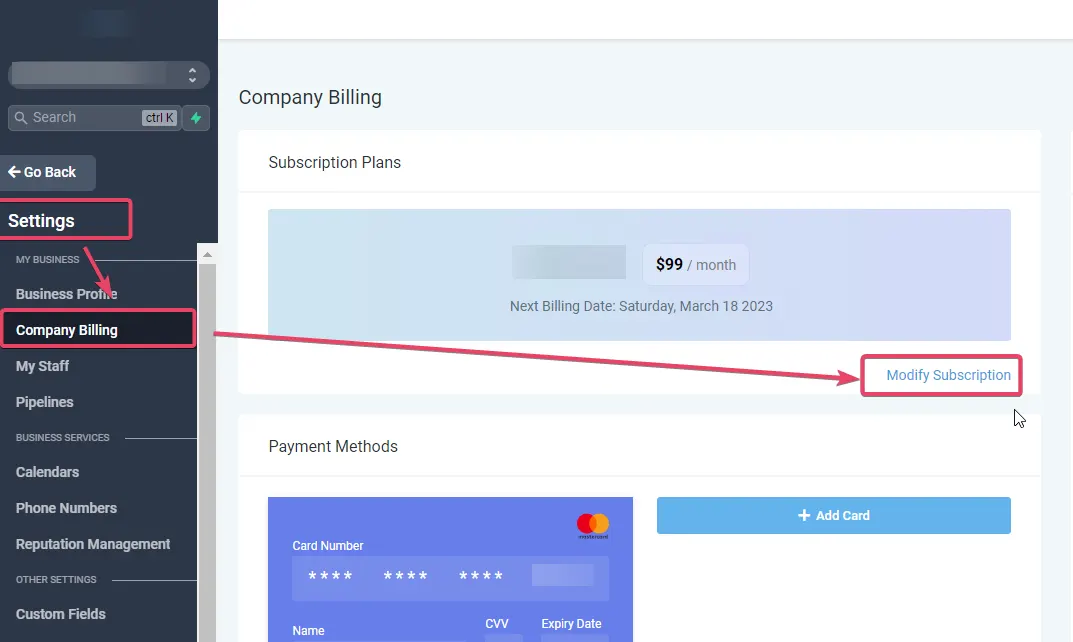
Step 3 Enable Per-Client Upgrade or Cancel Permissions
To manually manage upgrade options for a specific client:
Go to Sub-Accounts
Click the three dots next to a client and choose Manage Client
At the top, click SaaS
Scroll to Subscription Settings
Toggle on:
Allow client to upgrade
Allow client to cancel
This is useful if you want granular control over who can upgrade or cancel.
Step 4 Test the Client Experience
Once toggles are set, you can log in as the client to preview what they’ll see.
Here’s how:
Go to Settings > Billing
Click Modify Subscription
The client will see options to:
Upgrade to a higher plan (e.g., Monthly → Yearly)
Cancel subscription if needed
🧪 Always double-check from the client side before going live!
Step 5 Upgrade a Client’s Plan Manually via Stripe
If you prefer managing upgrades yourself:
Go to Settings > Billing > Payments under the client’s sub-account
Copy an invoice number or email address
Log in to your Stripe dashboard
Search for the client using that info
Under Subscriptions, click Update
Click Add Product and select the new plan
Remove the old product
(Optional) Set trial days or enable proration
🎯 After saving, go back to the sub-account and toggle features on/off to match the new plan.
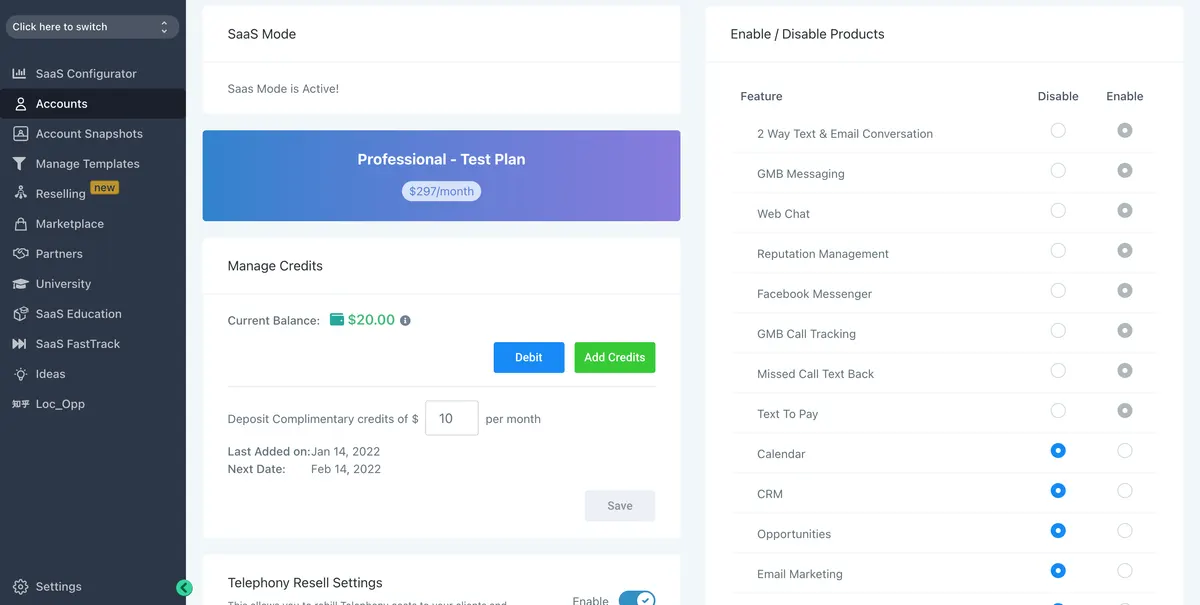
Pricing Breakdown
Here’s a sample SaaS pricing structure many agencies use:
| Plan | Price | Included Features |
|---|---|---|
| Starter | $97/mo | Basic CRM, 1 calendar, 1 pipeline, chat widget |
| Professional | $197/mo | Starter + AI Bot, automation workflows, basic analytics |
| Premium | $297/mo | Pro + Memberships, Client Portal, White-label mobile app |
Set this up in SaaS Configurator > Build Your Plans.
💸 You can rebill Twilio and email usage too for extra profit!
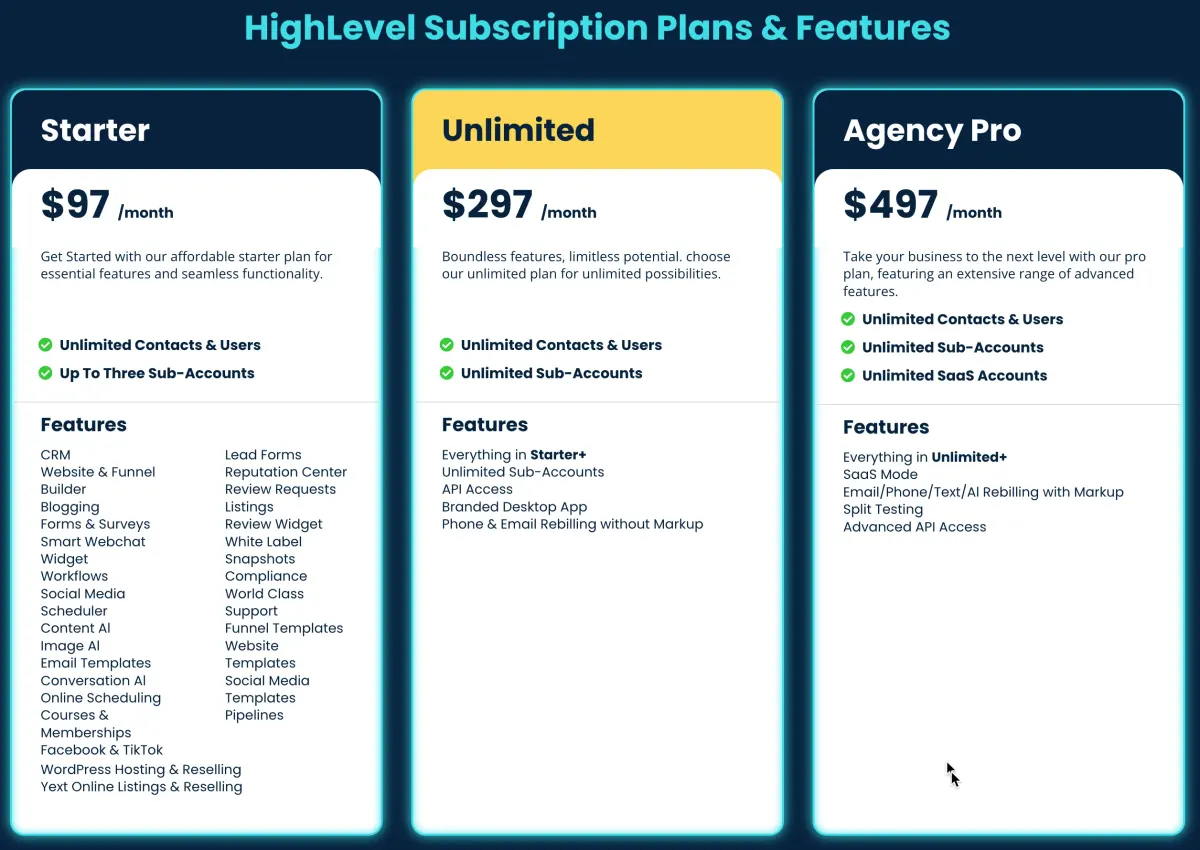
What Happens When a Client Cancels
If a client cancels:
Their account is paused
They see a message like: “Your account has been paused”
They can click to reactivate or update payment details
You can also cancel subscriptions manually and refund balances from the Wallet & Transactions area.
Exporting Billing and Subscription Records
Before making any deletions:
Go to Billing > Wallet & Transactions
Click Details
Use the Export CSV button
Enter your email to receive the file
This is essential for bookkeeping and compliance.
Optional Delete or Disable Account
o fully delete an account:
Go to Sub-Accounts > Manage Client
Click Actions > Disable SaaS
Follow the on-screen steps to confirm and remove
⚠️ Warning: This is irreversible and deletes all client data, automations, and communications.
Conclusion
Upgrading to the GoHighLevel SaaS Plan is more than a software switch—it’s a business growth strategy. With just a few clicks, you can automate your client’s experience, customize pricing, and create passive revenue.
🎯 Ready to take your agency to the next level?
Start your SaaS setup now and turn your HighLevel platform into a client-serving machine.
Click HereQuick answers
Frequently asked questions
Can I change the SaaS plan pricing after it's published?
To do this, go to the SaaS Configurator in your agency dashboard and adjust the pricing fields under each plan. Keep in mind, you’ll also need to update the corresponding Stripe product IDs to ensure billing matches. This flexibility helps you adapt to market changes or offer new deals as your business evolves.
Does enabling SaaS Mode automatically activate for all existing clients?
For existing clients, you’ll need to go into each sub-account and manually toggle the upgrade or cancellation settings. This gives you flexibility but requires a one-time setup if you’re transitioning older clients to SaaS plans.
Can I offer trial periods when upgrading clients to new plans?
When you add a new product in Stripe, you’ll see an option to assign trial days. This is a great way to let clients test out premium features before committing to a new plan. Just remember to communicate the trial length clearly in your SaaS plan descriptions.
What happens to a client’s account if they cancel their subscription?
When a client cancels, they’ll see a message saying their account has been paused. They can reactivate it anytime by updating their billing info. No new charges occur while paused, but data access is restricted until reactivation. This prevents accidental data loss and supports flexible re-engagement.
Is it possible to downgrade a client’s plan?
Currently, clients can’t downgrade themselves. To downgrade a plan, go to Stripe, remove the current subscription, and assign the new lower-tier product. Afterward, adjust features inside GoHighLevel to match the new plan.
Where this leaves you
Skip the build. Import a working GoHighLevel account instead.
Everything above is buildable by hand, and most people never finish. A snapshot is the same setup already made: funnels, pipelines, calendars, the prebuilt website and the automations, written for one industry and wired together before it reaches you.
- Delivered within 24 hours by email
- Install on unlimited sub-accounts you manage
- 20 hours of setup help across 15 days
Keep reading
All articles
Pre-Built A2P Campaign Widget-First Registration flow
If you’ve ever struggled with A2P 10DLC registration, you know how confusing and rejection-prone the process can be. One small
March 13, 20265 min read


Voice Dictation in AI Builder & Assistant
Build Powerful Workflows Just by Speaking Imagine building a complete automation without typing a single word. No clicking through triggers.
February 27, 20264 min read


Conversation AI Auto Follow-Up
The Smart Way to Re-Engage Leads Without Manual Work Leads don’t always ghost you on purpose. Sometimes they get busy.
February 20, 20264 min read