



Gohighlevel survey
Surveys are a powerful tool in GoHighLevel that help businesses and agencies collect valuable information from clients, leads, or prospects.

Contents
- Key Takeaways
- How to Create a Survey in GoHighLevel
- Step 1: Navigate to the Survey Builder
- Step 2: Add Questions
- Step 3: Customize Design
- Step 4: Configure Survey Settings
- Step 5: Save and Share
- Using Surveys for Specific Use Cases
- Lead Qualification
- Client Onboarding
- Feedback Collection
- Event Registration
- Automating Actions Based on Survey Responses
- Workflow Integration
- Analyzing Survey Results
- View Responses
- Use Analytics
- Frequently Asked Questions
- Conclusion
Surveys are a powerful tool in GoHighLevel that help businesses and agencies collect valuable information from clients, leads, or prospects. They can be used for onboarding, gathering feedback, lead qualification, or other custom purposes. This guide explains how to create, customize, and use surveys in GoHighLevel effectively.
Key Takeaways
Surveys in GoHighLevel allow you to collect and organize data seamlessly.
Customizable templates and drag-and-drop tools make creating surveys simple.
You can automate actions based on survey responses using workflows.
How to Create a Survey in GoHighLevel
Step 1: Navigate to the Survey Builder
- Log in to your GoHighLevel account.
- Go to Funnels & Websites > Surveys.
- Click Create Survey to start building your form.
Step 2: Add Questions
Use the drag-and-drop editor to add questions.
Common question types include:
Text Input: Open-ended responses.
Multiple Choice: Single or multiple selections.
Dropdown: A compact list of options.
Rating Scale: Useful for feedback.
Yes/No Questions: Quick responses.
Step 3: Customize Design
Add a title or introduction to explain the purpose of the survey.
Customize the design:
Adjust colors and fonts to match your branding.
Add your company logo for a professional look.
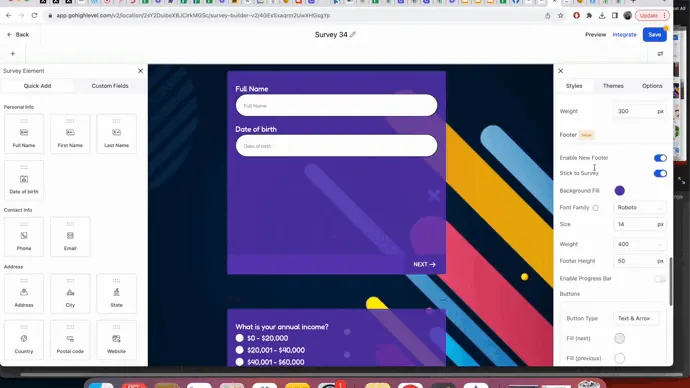
Step 4: Configure Survey Settings
Enable required fields for essential questions.
Choose what happens after submission:
Redirect respondents to a thank-you page.
Trigger an action, like sending an email.
Step 5: Save and Share
Save the survey and test it to ensure functionality.
Share the survey using:
A direct link.
Embedding it in a website or funnel.
Sending it via email or SMS.
Using Surveys for Specific Use Cases
Lead Qualification
Use surveys to qualify leads by asking about:
Budget.
Needs and priorities.
Timeline for making decisions.
Example Workflow:
- If a lead selects a high budget, automatically notify your sales team.
Client Onboarding
Create onboarding surveys to gather:
- Contact details.
- Business goals and challenges.
- Communication preferences.
Feedback Collection
Send surveys to collect feedback on:
Product or service satisfaction.
Event experiences.
Suggestions for improvement.
Event Registration
Use surveys to:
- Gather attendee details.
- Ask about dietary restrictions or special requirements.
Automating Actions Based on Survey Responses
Workflow Integration
Go to Automation > Workflows and create a workflow based on survey submissions.
Common triggers:
When a survey is submitted.
When specific responses are selected.
Example Automations:
- Send a thank-you email after a survey is submitted.
- Add respondents to a pipeline based on their answers.
Analyzing Survey Results
View Responses
Go to Funnels & Websites > Surveys > Responses.
Export responses as a CSV file for analysis.
Use Analytics
rack:
- Submission rates.
- Patterns in responses.
- Common feedback themes.
Frequently Asked Questions
Can I embed surveys into my website?
Yes, GoHighLevel is beginner-friendly, though some features like automation may require a short learning curve.
Are survey responses stored securely?
Yes, all responses are securely stored in your GoHighLevel account and can be exported as needed.
Can I trigger automations based on survey responses?
Absolutely. Use workflows to trigger actions such as sending emails, assigning leads to pipelines, or notifying team members.
Can I use surveys to segment leads?
Yes, you can use survey responses to tag or categorize leads for targeted marketing campaigns.
Does GoHighLevel provide survey templates?
Yes, GoHighLevel includes pre-built survey templates that you can customize to fit your needs.
Conclusion
GoHighLevel surveys are a versatile tool for gathering information, improving client experiences, and automating actions. Whether you’re qualifying leads, onboarding clients, or collecting feedback, the platform’s user-friendly tools make it easy to create, share, and analyze surveys. Start using surveys in GoHighLevel to streamline your processes and make data-driven decisions!
Where this leaves you
Skip the build. Import a working GoHighLevel account instead.
Everything above is buildable by hand, and most people never finish. A snapshot is the same setup already made: funnels, pipelines, calendars, the prebuilt website and the automations, written for one industry and wired together before it reaches you.
- Delivered within 24 hours by email
- Install on unlimited sub-accounts you manage
- 20 hours of setup help across 15 days
Keep reading
All articles
Pre-Built A2P Campaign Widget-First Registration flow
If you’ve ever struggled with A2P 10DLC registration, you know how confusing and rejection-prone the process can be. One small
March 13, 20265 min read
Voice Dictation in AI Builder & Assistant
Build Powerful Workflows Just by Speaking Imagine building a complete automation without typing a single word. No clicking through triggers.
February 27, 20264 min read


Conversation AI Auto Follow-Up
The Smart Way to Re-Engage Leads Without Manual Work Leads don’t always ghost you on purpose. Sometimes they get busy.
February 20, 20264 min read