



Skip to content
Launch pricing live on snapshots, funnels and design packsBrowse the catalogue
Book a call

Install guide · about 2 minutes

Install your GoHighLevel theme with one line of code

The GoHighLevel custom JS install is two pastes: one script line for the app and one CSS line for the login page. Both come pre-filled from the customizer's Get code screen. Here is exactly where they go and what to check afterwards.

One-time payment, lifetime accessLogin within minutes, at most 24 hours

Get code

Agency Settings > Company > White Label > Custom JS

<script src="https://customizer.ghlcustomercare.com/l/YOUR-KEY.js"></script>

Agency Settings > Company > White Label > Custom CSS

@import url("https://customizer.ghlcustomercare.com/lc/YOUR-KEY.css");

YOUR-KEY is replaced with your own key on the Get code screen.

Step by step

How to install the GHL Customizer in GoHighLevel

Paste one script into Custom JS and one import into Custom CSS, add your domains, then reload. The whole job is six short steps.

  1. 1

    Open Get code in the customizer

    Log in with the account emailed to you, open your workspace and press Get code. It shows your two lines with your own key already filled in, so there is nothing to edit by hand.

  2. 2

    Paste the script into Custom JS

    In GoHighLevel go to Agency Settings > Company > White Label > Custom JS. Paste the script line on its own line, below anything already there, and save. This one line loads your theme, menus, dashboards, pipelines and widgets.

  3. 3

    Paste the import into Custom CSS

    On the same page, in Agency Settings > Company > White Label > Custom CSS, paste the @import line at the very top of the box and save. GoHighLevel does not run custom scripts before someone signs in, so the login page design travels as CSS instead.

  4. 4

    Add your domains

    In the customizer, list the domains the install should run on: your white-label app domain and any website that will carry a widget. A line copied onto a domain you have not listed simply does nothing.

  5. 5

    Reload and check

    Open GoHighLevel in a new tab, sign out and back in to see the login page, then open a sub-account. A hard refresh clears an old cached stylesheet if the first load still looks stock.

  6. 6

    Change anything, any time

    From now on you only work in the editor. Save, and GoHighLevel picks up the new design on its next page load. Version history keeps earlier designs if you want one back.

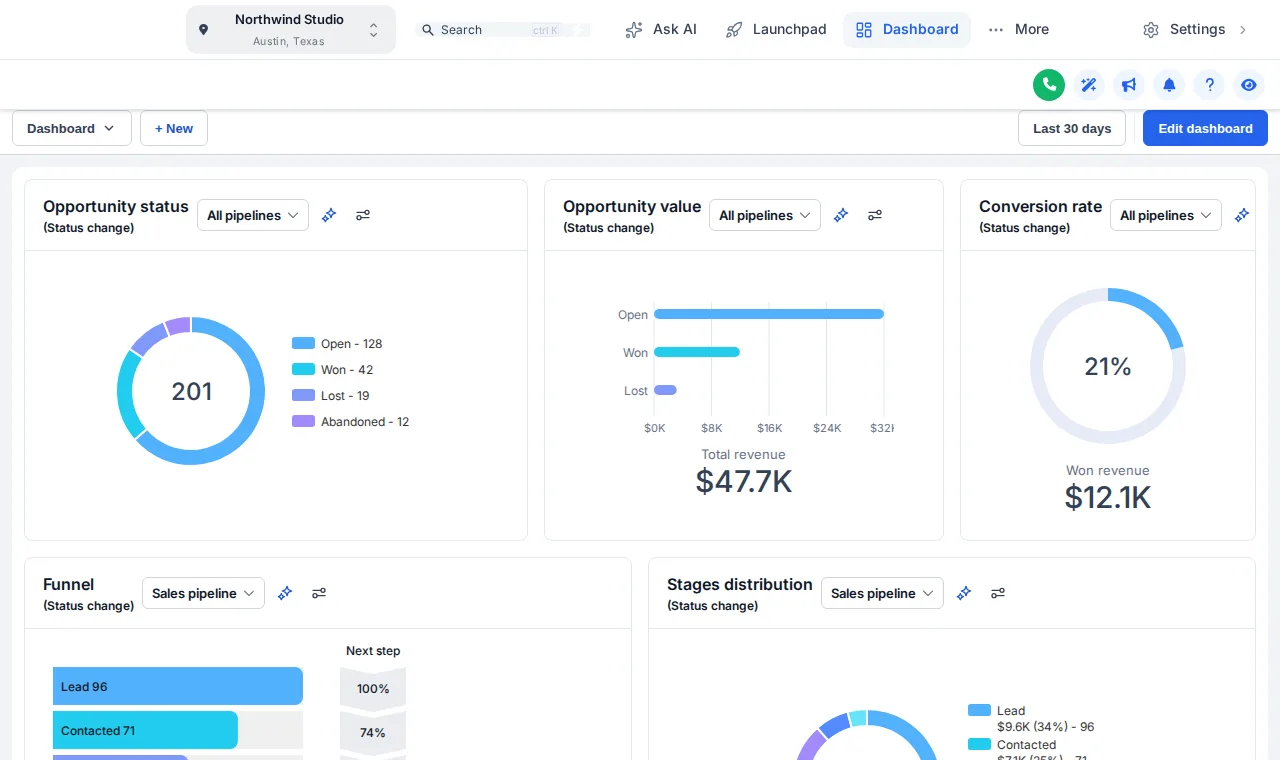
GoHighLevel with the Arctic Clean theme: white top bar and crisp blue buttons
Arctic Clean theme

Two things that trip people up

  • The @import must be the first line of Custom CSS, or browsers ignore it.
  • A line on a domain you have not listed in the customizer runs nothing. Add the domain, then reload.

What you need before you start

Your customizer login

Emailed within minutes, at most 24 hours after checkout. Change the temporary password the first time you sign in.

Agency-admin access to GoHighLevel

The white-label Custom JS and Custom CSS fields sit under Agency Settings, which only agency admins can edit.

Your white-label domain

The domain your clients log in on. You add it to the allowed domains list in the customizer so the line runs there.

Setting up the branded domain itself? Read the most common mistake with GoHighLevel branded domains first.

The process

Where the install sits in the whole process

The install is the last of four steps. The first three happen before you open GoHighLevel at all.

  1. Step 1

    Choose a package and pay

    Pick Top Starter, Top Pro or Top Elite and check out through our secure Stripe checkout. One-time payment, lifetime access.

  2. Step 2

    Get your login by email

    Your account is created automatically after payment and the login (email and a temporary password) is emailed within minutes, at most 24 hours.

  3. Step 3

    Customise in the live editor

    Log in, pick a theme, login design, menus and the rest, and watch every change on a live preview before it touches GoHighLevel.

  4. Step 4

    Paste one line into GoHighLevel

    Copy your line from the editor’s Get code screen into Agency Settings > Company > White Label > Custom JS. About 2 minutes, once. Every later change goes live on its own.

Every package installs the same way

The same two lines carry whatever your package unlocks, so upgrading later never means reinstalling.

Tier 1

Top Starter

Re-skin every screen and the login page, once, for good.

$217one time

One-time payment, lifetime access. Login emailed within minutes (max 24 hours).

  • All 27 complete themes
  • All 11 UI kits for cards, buttons, inputs and tables
  • Dark mode
  • Sidebar or top-bar layout

Best for: One agency brand that wants its own theme, dark mode and an animated login page.

Our pick for snapshot buyers

Tier 2

Top Pro

Everything in Top Starter, plus the screens your clients work in all day.

$517one time

One-time payment, lifetime access. Login emailed within minutes (max 24 hours).

  • Everything in Top Starter
  • Mega menus and the floating quick menu
  • Announcements inside the app
  • Sub-account self-service

Best for: Agencies with active clients who log in daily and need the menus, dashboard and pipeline to feel designed.

Tier 3

Top Elite

Everything in Top Pro, plus the widgets that win and keep clients.

$1,047one time

One-time payment, lifetime access. Login emailed within minutes (max 24 hours).

  • Everything in Top Pro
  • Popups: 43 templates, up to 15 live
  • Notifications and social proof: 94 templates, up to 15 live
  • Calculators: 134 templates, up to 10 live

Best for: Agencies running several brands that want conversion widgets and a fully white-labelled editor.

FAQ

Install questions

Not covered here? Email and a person replies.

Where do I paste the GHL Customizer code?

The script goes in Agency Settings > Company > White Label > Custom JS. The login page import goes in Agency Settings > Company > White Label > Custom CSS. Both are agency-level white-label settings, so you need agency-admin access to GoHighLevel.

How long does the install take?

About 2 minutes, and you do it once. Every later change is made in the customizer and goes live on GoHighLevel's next page load without touching the code again.

Why are there two lines instead of one?

GoHighLevel runs custom scripts only after someone has signed in, so the script cannot reach the login page. The CSS import does load on the login screen, which is how the login design gets there.

I already have code in Custom JS. Will this break it?

No. Paste the customizer line on its own line alongside what is there. If something else on the page also restyles GoHighLevel, the two may compete for the same elements, so remove the older theme code once you are happy with the new look.

The @import line does nothing. What is wrong?

An @import has to be the first rule in a stylesheet, so put it at the very top of the Custom CSS box, above any other CSS. Then save, sign out and load the login page in a private window to rule out a cached copy.

Do I need to install it in every sub-account?

No. The lines go in once at agency level and every sub-account loads them. What each sub-account sees can then be adjusted inside the customizer where a module offers that choice.

Does the install give anyone access to my GoHighLevel data?

You never hand over a GoHighLevel login. The line loads the design files from the customizer; nobody at our end signs in to your account, and the contact actions bar works through your own logged-in session.

How do I remove it?

Delete the two lines from Custom JS and Custom CSS and save. GoHighLevel goes back to its stock look on the next page load. Your designs stay in the customizer if you want to put them back later.

Finish your GoHighLevel the way you finished the snapshot

One-time payment, lifetime access. Your login is emailed within minutes, at most 24 hours, and you install it with one line of code.