



Automated Lead Scoring in GHL Pipelines with AI
If you’ve been working with GoHighLevel (GHL) for a while, you probably know how powerful the platform can be for
Contents
If you’ve been working with GoHighLevel (GHL) for a while, you probably know how powerful the platform can be for sales, marketing, and client communication. But here’s a question that often comes up:
How do I know which of my leads are ready to buy, and which ones are just window shopping?
That’s where lead scoring comes in—and while GHL doesn’t have a built-in lead scoring module like some CRMs, it absolutely can be done using a mix of custom fields, workflow automation, and AI logic.
This guide walks you through exactly how to implement automated lead scoring inside your GHL pipelines, with real examples, step-by-step workflows, and smart AI enhancements that make the system smarter over time.
What You’ll Learn
- How to set up a fully automated lead scoring system in GHL
- The actions you should track (email opens, form fills, appointments, etc.)
- How to build workflows that update scores in real time
- How to enhance scoring using AI logic from Workflow AI or Conversation AI
- How to use lead scores to move contacts through pipelines or trigger follow-ups
- Practical tips on scaling lead scoring as an agency or SaaS offer
What Is Lead Scoring and Why It Matters
Lead scoring is a methodology used to assign value (usually in the form of points) to each lead based on their behavior, engagement, and demographic information. This score helps your team determine how sales-ready a lead is, so they can focus on the highest-priority contacts.
Let’s simplify it:
- A lead opens your email → +1 point
- They click a link → +3 points
- They fill out a form → +5 points
- They book a call → +15 points
The more actions they take, the hotter they get.
With this in place, your team won’t waste time on low-interest leads—and your automation system will know exactly when to strike with a nurture sequence, call task, or pipeline move.
Setting Up Lead Scoring in GoHighLevel
Here’s the truth: GoHighLevel doesn’t have a native “Lead Score” button. But you don’t need one.
Thanks to custom fields and workflow actions, you can build your system that does the job—better than most out-of-the-box CRMs.
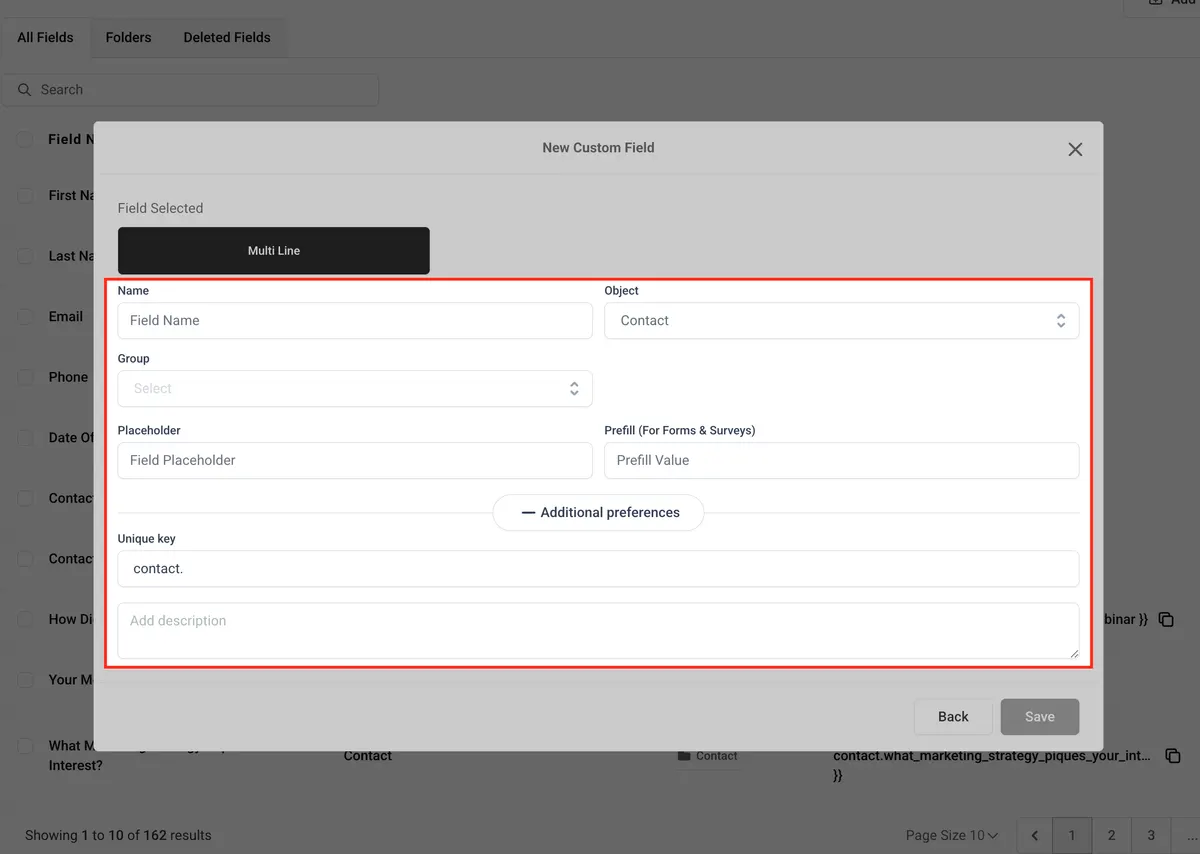
Step 1: Create a Custom Field for Lead Score
Go to Settings → Custom Fields
Click Add Field and select Number
Name it Lead Score (or Engagement Score)
Assign it to the Contact group
Save it and drag it to the top of the contact layout so it’s visible at a glance
You now have a numeric field that will hold each contact’s score.
Step 2: Build Lead Scoring Workflows
You’ll create one workflow per action you want to track. Each one will:
Trigger when a specific event happens
Wait briefly (optional)
Add points to the Lead Score field
Let’s walk through a few core examples.
Workflow 1: Email Open → +1 Point
Trigger: Email Event → Opened
Add a Wait Step (e.g., 5 minutes)
Add a Math Operation
Field: Lead Score
Operation: Add
Value: 1
Under settings, turn on Allow Multiple Triggers
Workflow 2: Email Click → +3 Points
Clone Workflow 1
Change the trigger to Email Event → Clicked
Update the math value to 3
Workflow 3: Form Submission → +5 Points
Trigger: Form Submitted
Math Operation: Add 5 to Lead Score
Workflow 4: Survey Completion → +10 Points
Trigger: Survey Submitted
Math Operation: Add 10
Workflow 5: Appointment Booked → +15 Points
Trigger: Appointment Status → Confirmed
Math Operation: Add 15
💡 Pro Tip: Use the Clone feature to build each workflow faster. You only need to update the trigger and math value.
Example Scoring Table
| Action | Trigger Type | Points |
|---|---|---|
| Email Opened | Email Event → Opened | +1 |
| Email Clicked | Email Event → Clicked | +3 |
| Form Submitted | Form Submitted | +5 |
| Survey Completed | Survey Submitted | +10 |
| Appointment Confirmed | Appointment Status = Confirmed | +15 |
Going Beyond with AI-Enhanced Scoring
Now comes the fun part: making your lead scoring smarter with AI.
GoHighLevel includes two AI systems:
Workflow AI—Insert GPT prompts into your workflows for dynamic decision-making
Conversation AI—Train a chatbot to score or route leads based on their intent
Let’s look at a few ways to put AI to work.
Use Workflow AI for Sentiment Analysis
Add a Workflow AI step that:
Analyzes email replies, form text fields, or chat transcripts
Scores based on urgency or sentiment
Example Prompt:
“If the message indicates buying intent or urgency, return score: 10. Else return score: 0.”
Take that score and apply it via a math operation.
📚 Learn more about Workflow AI
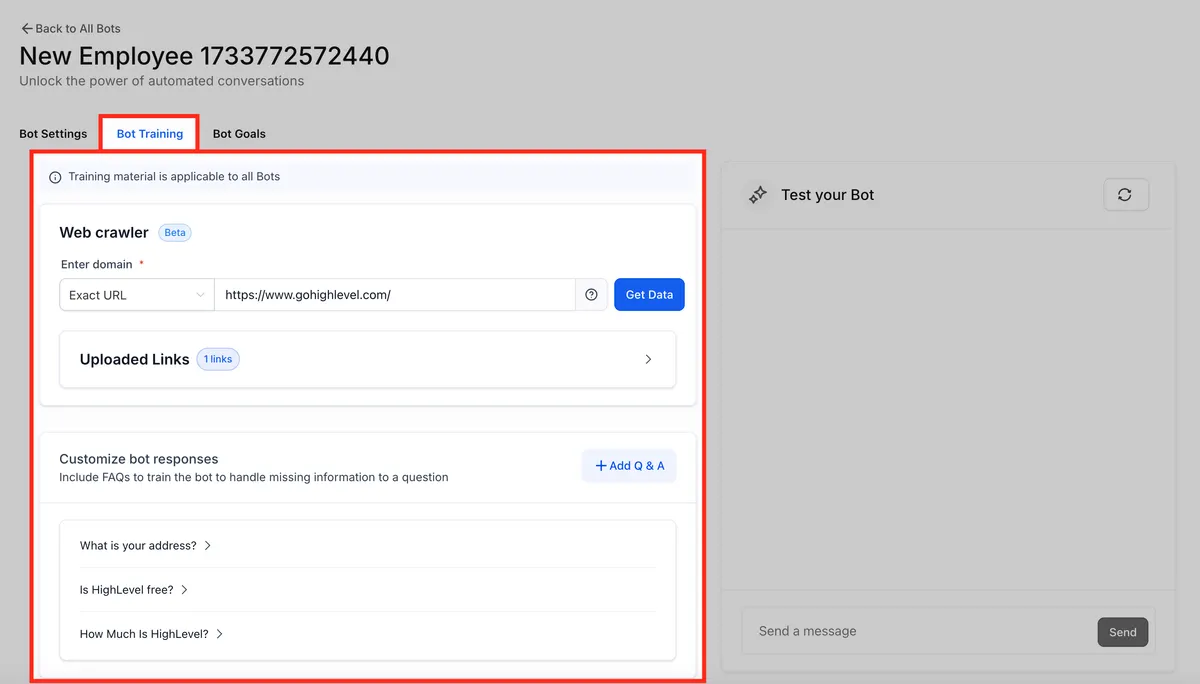
Use Conversation AI to Detect Hot Leads
Train your Conversation AI bot to:
Recognize buying intent phrases (“I’m ready to start,” “How much does it cost?”)
Automatically tag or score the contact
Trigger follow-ups or pipeline movement
You can configure intents and responses in Settings → Conversation AI
👉 Conversation AI Explained
How to Use Lead Scores Inside Pipelines
Once you’ve got your scores updating, you can use them to trigger automation, segment your contacts, or move them through your pipeline.
1. Segment by Smart Lists
Create dynamic Smart Lists like:
“Leads with score over 20”
“Contacts with score between 10–15”
These can power email campaigns, SMS sequences, or sales tasks.
2. Move Leads Between Pipeline Stages
Use score-based logic:
If
Lead Score> 25 → Move to “Sales Call Needed”If
Lead Score< 5 for 30 days → Move to “Cold Leads”
3. Notify Your Sales Team
Trigger internal alerts when a lead crosses a threshold:
Send Slack/Email/SMS to reps
Assign manual call tasks
Trigger calendar booking link via SMS
4. Trigger Different Email Sequences
Use conditional branches in workflows:
High-score leads → Sales offer
Mid-score leads → Nurture series
Low-score → Re-engagement campaign
Bonus for Agencies Using SaaS Mode
- If you’re running GoHighLevel in SaaS mode, you can:
- Package lead scoring as a premium feature
- Use AI scoring as a value-add to increase plan tiers
- Rebill AI usage through GHL billing settings
👉 SaaS Mode Setup Guide
Conclusion
Automated lead scoring inside GoHighLevel is one of the most powerful systems you can implement—even without a built-in scoring tool. With a little creativity and automation, you can transform your pipelines into intelligent, high-converting sales machines.
From email opens to appointment bookings, and now with AI-enhanced scoring logic, you’ll know exactly who to call, when to follow up, and how to close more deals with less manual effort.
If you’re an agency, package this as a white-glove feature. If you’re a business owner, make this a cornerstone of your funnel.
Either way, the power is in your hands.
Want help building this for your agency or clients?
Reach out, or drop your questions in the comments below—we’d love to hear how you’re using automated lead scoring in your GoHighLevel workflows.
Click Here
Quick answers
Frequently asked questions
Can I assign negative scores for bad behavior?
Yes. You can subtract points in math operations. Example: if a lead unsubscribes or no-shows an appointment, deduct 10.
How do I reset lead scores over time?
Use workflows with time triggers or inactivity filters to reset or decay scores.
Can I display lead scores in pipeline views?
Not yet natively, but you can view the score in the contact card when opening opportunities.
Can AI analyze sentiment or urgency in replies?
Yes. Use Workflow AI to interpret language and assign dynamic scores.
Does Conversation AI increase lead scores automatically?
It depends on how you configure it. You can train it to detect certain responses and trigger workflows that increase scores.
Where this leaves you
Skip the build. Import a working GoHighLevel account instead.
Everything above is buildable by hand, and most people never finish. A snapshot is the same setup already made: funnels, pipelines, calendars, the prebuilt website and the automations, written for one industry and wired together before it reaches you.
- Delivered within 24 hours by email
- Install on unlimited sub-accounts you manage
- 20 hours of setup help across 15 days
Keep reading
All articles
Pre-Built A2P Campaign Widget-First Registration flow
If you’ve ever struggled with A2P 10DLC registration, you know how confusing and rejection-prone the process can be. One small
March 13, 20265 min read
Voice Dictation in AI Builder & Assistant
Build Powerful Workflows Just by Speaking Imagine building a complete automation without typing a single word. No clicking through triggers.
February 27, 20264 min read
Canva Integration in Media Storage
Design smarter. Move faster. Stop switching tabs. If you’ve ever designed something in Canva, downloaded it, uploaded it into your
February 26, 20265 min read