



Canva Integration in Media Storage
Design smarter. Move faster. Stop switching tabs. If you’ve ever designed something in Canva, downloaded it, uploaded it into your
Contents
- Quick Takeaways
- The Real Problem This Solves
- What Canva Integration Actually Does
- How It Works
- Step-by-Step Guide to Connecting Canva
- Editing Designs Without Leaving the Platform
- Why Agencies Benefit the Most
- Using Canva Designs in Funnels and Emails
- Permissions and Access Structure
- What Happens If You Disconnect Canva
- Pricing Breakdown
- Best Practices for Maximum Efficiency
- Common Workflow Improvements You’ll Notice
- Final Thoughts
Design smarter. Move faster. Stop switching tabs.
If you’ve ever designed something in Canva, downloaded it, uploaded it into your CRM… then realized you needed to tweak one tiny detail — you already understand the frustration.
Download.
Upload.
Replace.
Rename.
Repeat.
It doesn’t seem like much at first. But when you’re building funnels, launching ads, updating email campaigns, or managing client assets daily, that tiny friction compounds fast.
That’s exactly why Canva Integration in Media Storage is such a powerful update. It brings Canva directly into your workflow so you can browse, edit, and import designs without the constant back-and-forth.
And once you start using it, going back feels unnecessarily complicated.
Quick Takeaways
- Connect one Canva account per location
- Access your Canva library directly inside Media Storage
- Edit designs without downloading or switching tabs
- Re-import updated versions instantly
- Reduce duplicate uploads and version confusion
- Maintain centralized asset management
- Keep previously imported files even if Canva is disconnected
The Real Problem This Solves
Let’s be honest. Most marketing delays aren’t caused by strategy problems.
They’re caused by workflow inefficiencies.
Here’s what a typical creative process looks like without integration:
- The designer creates an ad banner in Canva
- Downloads the file
- Uploads it to media storage.
- A funnel gets built
- The client asks for a minor change
- Designer edits again in Canva
- Downloads again
- Uploads again
Now there are multiple versions saved
Multiply that across multiple campaigns, multiple team members, and multiple revisions.
It creates:
- Cluttered media libraries
- Version confusion
- Accidental publishing errors
- Lost time
Canva Integration in Media Storage removes those friction points.
What Canva Integration Actually Does
Instead of treating Canva as a separate tool, the integration connects your Canva account directly to your location’s Media Storage.
Once connected, you can:
- Browse all your Canva designs from a dedicated Canva tab
- Edit designs directly in Canva
- Import updated versions into My Media
- Use imported assets in funnels, emails, and websites
There’s no need to manually download files to your computer before uploading them.
Everything flows through one connected system.
And that small shift dramatically improves workflow efficiency.
How It Works
The integration operates at the location level.
Important structure rules:
- Only one Canva account per location
- All users inside the location can view assets
- Only the installer has full edit access
- Proxy “Login As” users cannot access Canva
- Only one OAuth connection allowed per installation
These boundaries ensure clarity and prevent chaos in team environments.
Step-by-Step Guide to Connecting Canva
You have two ways to connect Canva.
Option 1: Connect Through Media Storage
- Navigate to Media Storage
- Click the Canva tab
- Click Connect
- Complete OAuth authentication
- Your Canva designs will populate automatically
That’s it. No complicated setup.
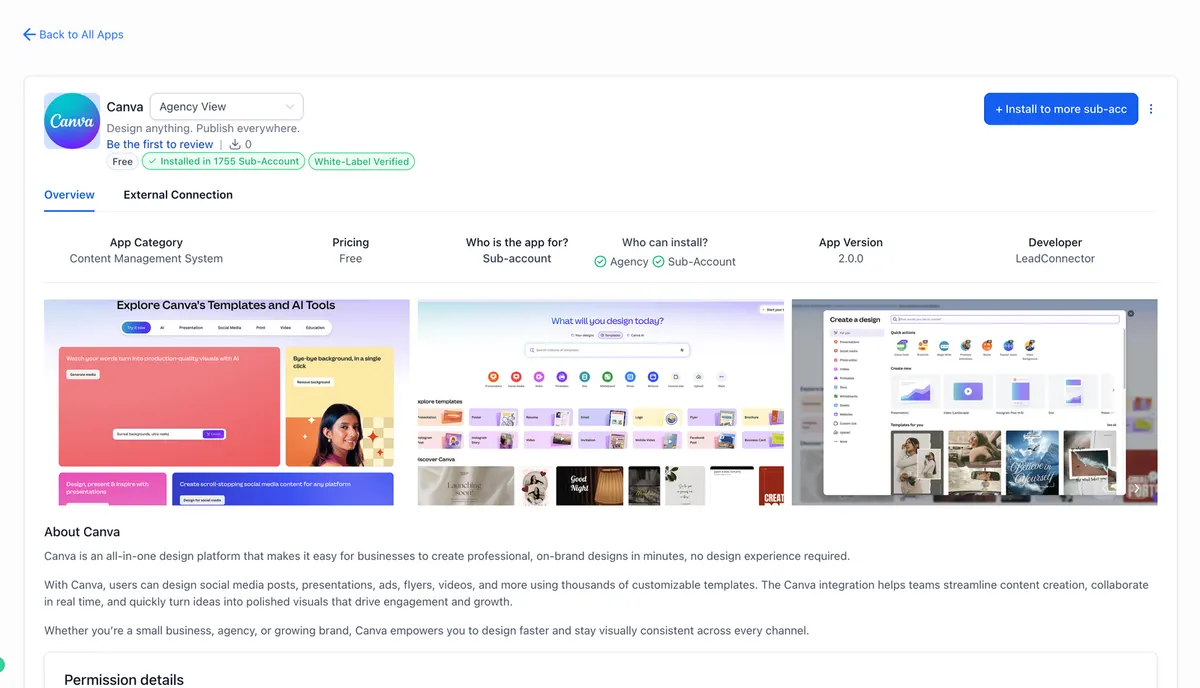
Option 2: Install Through App Marketplace
- Go to the app marketplace.
- Search for Canva
- Install the Canva integration
- Complete OAuth login
- Access designs inside media storage.
Once connected, your Canva account is tied to that specific location.
Editing Designs Without Leaving the Platform
This is where the integration becomes genuinely valuable.
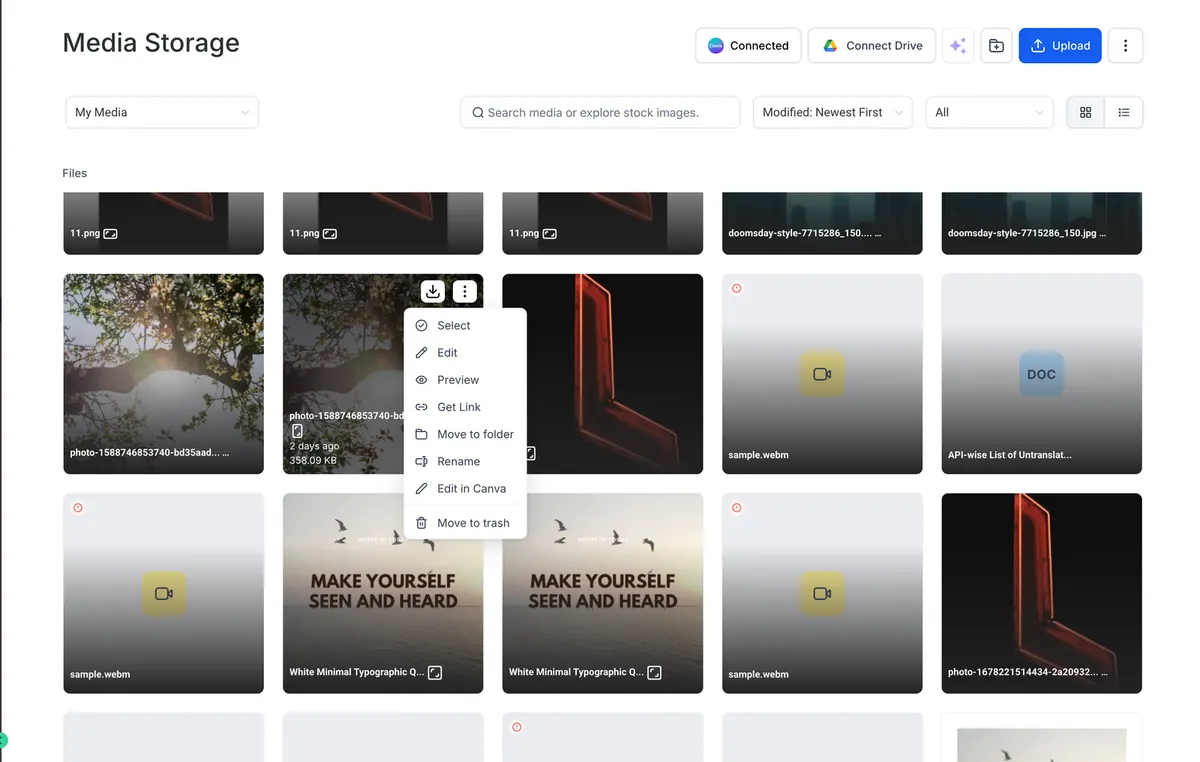
Editing from the Canva Tab
- Open Media Storage
- Click the Canva tab
- Select the three-dot menu on a design
- Choose “Edit” in Canva
- Make your changes
- Import the updated version
No downloads.
No file juggling.
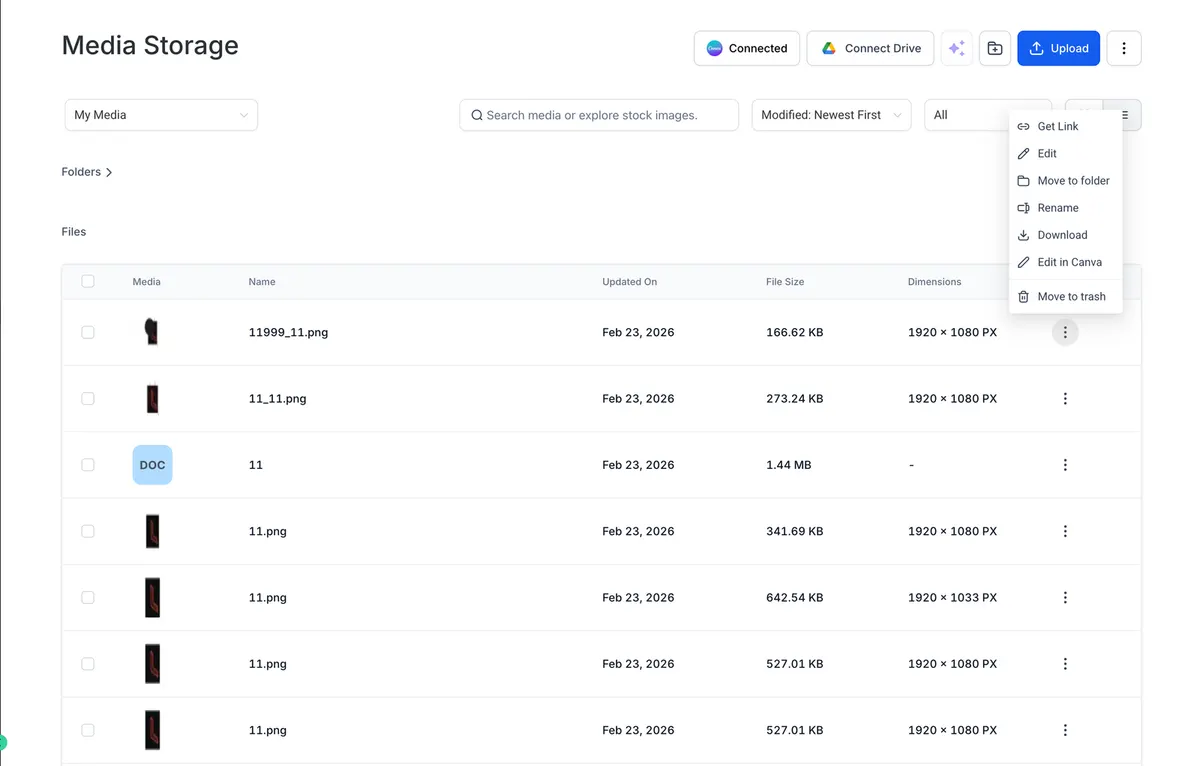
Editing from My Media
If you’ve already imported a PNG, JPG, or JPEG file:
- Open the file in My Media
- Click “Edit” in Canva
- Make updates
- Re-import the new version
Smart Design Tracking prevents duplicate Canva copies when editing from My Media. This keeps your storage organized and reduces unnecessary file clutter.
Why Agencies Benefit the Most
For solo marketers, this saves time.
For agencies, this prevents operational headaches.
Agencies typically deal with:
- Multiple clients
- Multiple revisions
- Design approvals
- Cross-team collaboration
Without integration, version control becomes messy fast.
With Canva inside Media Storage:
- Designers edit centrally
- Account managers access assets instantly
- Media buyers use the latest versions
- Everything stays organized
It’s less about convenience.
It’s about scalability.
Using Canva Designs in Funnels and Emails
Before using a Canva design in:
- Funnels
- Email campaigns
- Websites
You must import it into My Media.
Once imported, it functions like any other media asset inside your system.
One important note:
Private Canva files cannot be edited via integration.
Permissions and Access Structure
Access is intentionally structured to protect workflows.
Installer
- Full edit access
Other users
- View
- Search
- Download
- Import
If a non-installer attempts to edit, they’ll receive a view-only access message.
This keeps collaboration organized without sacrificing control.
What Happens If You Disconnect Canva
If you uninstall Canva via App Marketplace:
- The connection is removed
- Previously imported files remain in media storage.
This ensures you never lose important assets.
Pricing Breakdown
There is no additional cost for using Canva integration inside media storage.
However, you must maintain an active Canva account.
Canva plans typically include:
Free Plan
- Limited templates and stock assets
Canva Pro
- Monthly subscription
- Access to premium templates
- Brand kits
- Background remover
- Magic resize tools
Canva Teams
- Multi-user collaboration
- Centralized brand management
- Shared folders and templates
The integration itself does not add additional platform fees.
Best Practices for Maximum Efficiency
To truly optimize your workflow:
- Create standardized brand templates inside Canva
- Use consistent file naming conventions
- Assign one team member as Canva connection owner
- Import finalized designs before building funnels
- Avoid duplicating the same asset across multiple accounts
Structure creates speed.
And speed creates leverage.
Common Workflow Improvements You’ll Notice
After using Canva integration consistently, most teams notice the following:
- Faster campaign deployment
- Reduced asset confusion
- Cleaner media storage
- Less back-and-forth between departments
- Fewer accidental version mistakes
Small workflow improvements compound significantly over time.
Final Thoughts
Canva Integration in Media Storage isn’t flashy.
It doesn’t introduce complex automation.
It doesn’t reinvent marketing strategy.
What it does is remove friction.
And friction is the hidden tax on productivity.
By eliminating unnecessary downloads, reducing duplicate uploads, and centralizing creative workflows, this integration helps teams move faster with fewer mistakes.
Fewer tabs.
Fewer file versions.
Less confusion.
More execution.
And in marketing, execution speed is everything.
If you rely on Canva for design and use Media Storage to manage assets, this integration quietly transforms how smoothly your entire workflow operates.
Sometimes the most impactful upgrades aren’t dramatic.
They’re simply efficient.
Quick answers
Frequently asked questions
Can everyone edit Canva designs?
No. Only the installer has full edit access.
Can I connect multiple Canva accounts to one location?
No. Only one Canva account per location is supported.
Do I need to import designs before using them?
Yes. Designs must be in My Media before use in funnels or emails.
Will I lose files if I uninstall Canva?
No. Previously imported files remain stored.
Is there an additional integration fee?
No. The integration itself is free.
Can private Canva files be edited?
No. Private files cannot be edited via integration.
Where this leaves you
Skip the build. Import a working GoHighLevel account instead.
Everything above is buildable by hand, and most people never finish. A snapshot is the same setup already made: funnels, pipelines, calendars, the prebuilt website and the automations, written for one industry and wired together before it reaches you.
- Delivered within 24 hours by email
- Install on unlimited sub-accounts you manage
- 20 hours of setup help across 15 days
Keep reading
All articles
Integrate Multiple Facebook Pages with AI Auto-Responses in GoHighLevel
Managing several Facebook pages can be overwhelming—especially when customers are flooding your inboxes across multiple brands, locations, or campaigns. But
August 28, 20254 min read
Twilio Webhook Setup Guide for Incoming Calls and Messages
If you’re using Twilio to manage communications for your business, you’ve likely heard of webhooks. But if the idea of
May 29, 20254 min read


Fix HighLevel SMS Delivery Errors: A Diagnostic Order That Works
SMS not sending in GoHighLevel? Work through the causes in the order that finds the problem fastest: A2P status, number attachment, opt-outs, content and carrier filtering.
May 9, 20256 min read